


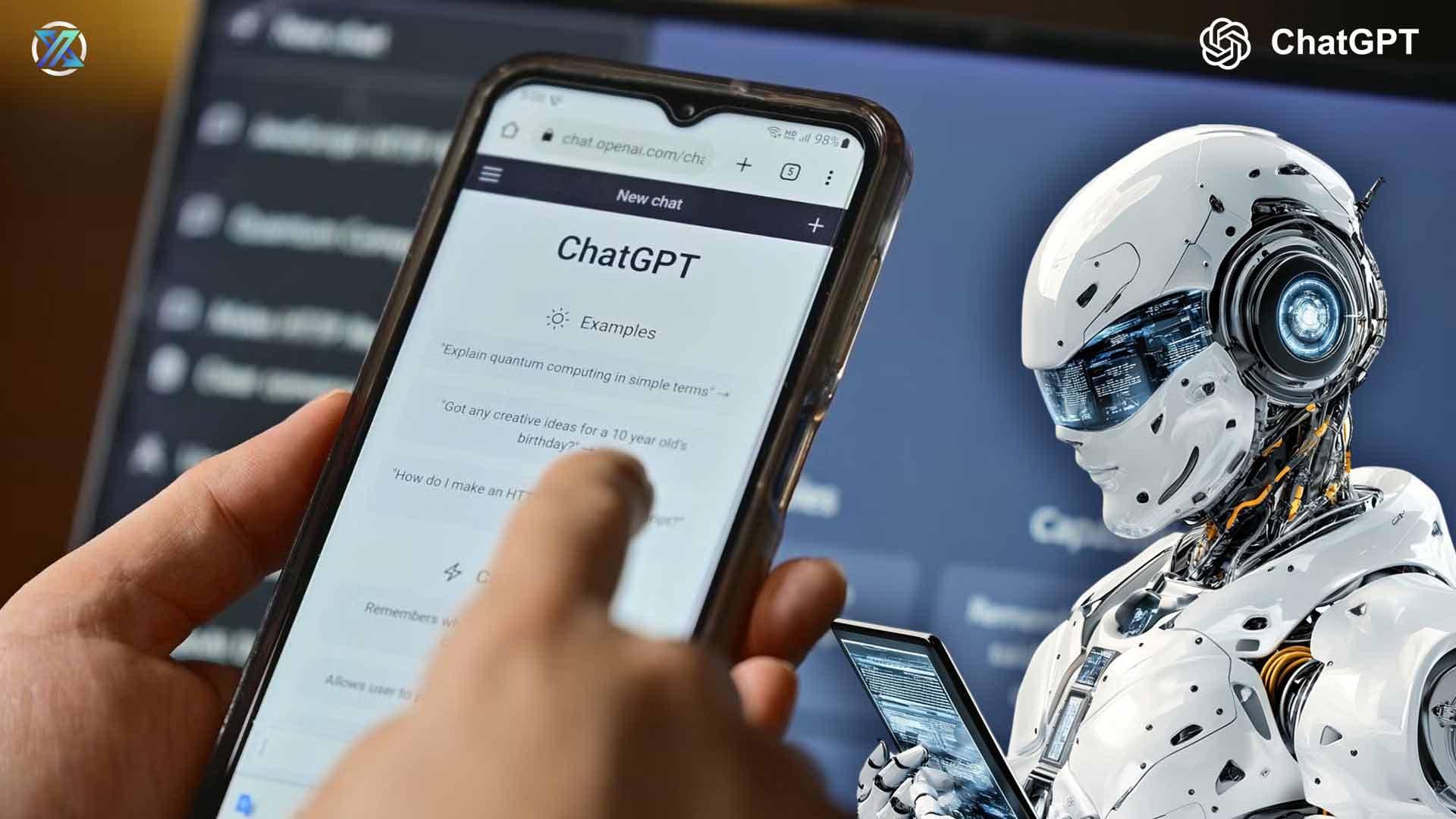
Now your personal assistant ChatGPT has added more strength to its hippocampus using a new feature called Library. It’s able to store memories you have created while chatting with it, be it romantic talks or entire spreadsheets for an organization. You won’t have to scroll all the way up to a certain conversation now that this feature is available. Just give the AI tool a command like “take me to that conversation we had about that girl who’s way out of my league,” and your assistant will take it there. Easy peasy. But you can look for them manually too, if you like.
However, the feature is currently available to Plus, Pro, and Business users and in regions “outside of the European Economic Area, Switzerland, and the United Kingdom,” according to the official announcement.
A Brief Guide to Use ChatGPT Library
You don’t need rocket science to explore this feature. Just think of this as Google Docs but more alive. Whatever you generate will be saved in a secure location. And instead of just looking for a particular doc via the search in Docs (which is easier and more convenient), you will be giving instructions to find things. It’s cool. That’s all. Interestingly, there’s also a search bar here.
Advertisement
And maybe you want to add a saved file. For that, there’s a composer menu from where you can upload one by using the “Add from library” button. In addition to adding files, you can delete them too, but you will have to do it manually. Like Docs, you can delete it and put it in trash and it will be scheduled for deletion after 30 days.
Advertisement
Some restrictions are applicable here too. For example, the file size. There’s a hard limit of 512 MB per file that goes down to 50MB for spreadsheets and 20MB for images.
Note that OpenAI will use this saved history of yours according to your settings and data control, so make sure everything is in line for you. Speaking of history, the Temporary Chat won’t end up in the Library, so don’t bother scraping the AI mansion for that.
Advertisement
That’s really all there is that you need to know about this new feature. Enjoy it, or just go to Google Docs, in case you aren’t a Plus, Pro, or Business user.